Clearing Your Browser Cache: A Guide for Different Browsers
Keeping your browser cache clean can help improve performance and security. Here's how to do it for popular browsers, with links to helpful Google videos:
General Tips:
Before clearing your cache, remember that it may temporarily log you out of websites and clear saved user preferences.
Back up any important information you might lose, like saved passwords or forms.
It's generally safe to clear your cache regularly, but do so responsibly.
Chrome:
Open Chrome and click the three dots in the top right corner.
Select "Settings" and then "Privacy and security."
Click "Clear browsing data."
Choose a time range (e.g., "All time").
Make sure "Cached images and files" is selected. You can also choose other data types to clear.
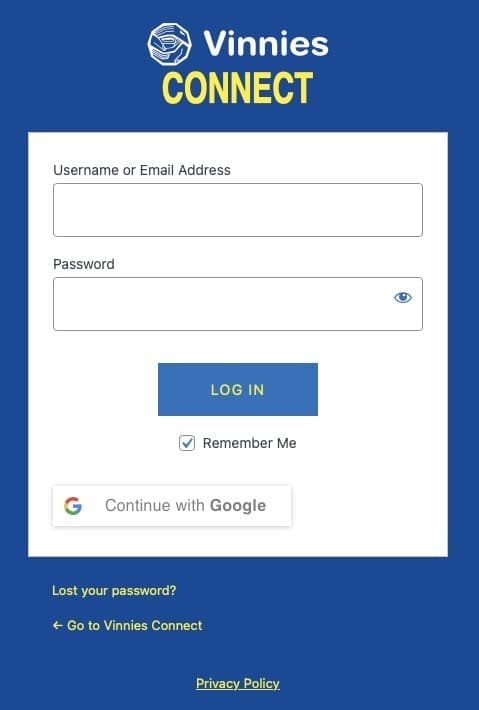
If you know your username and password, enter them in the spaces provided:
Alternatively, if you own any of the social media accounts listed, click on the corresponding one to log in.
If you do not see the Social Accounts buttons, make sure to clear your cache or try a different browser.
Accessing the Vinnies Connect App
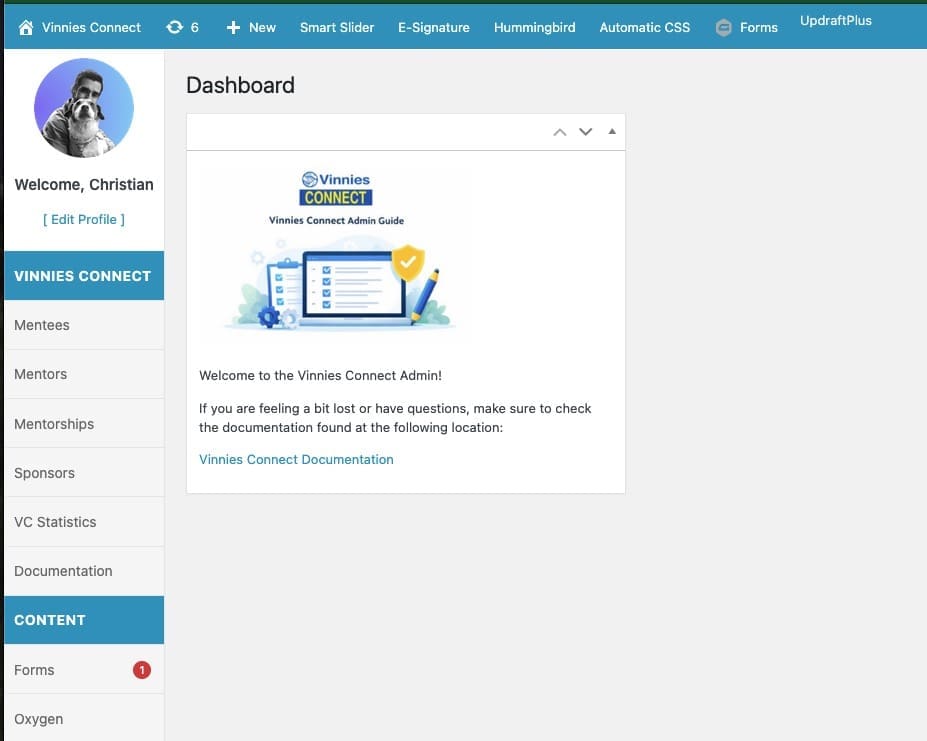
Once logged in, you will be directed to the Vinnies Connect Admin:
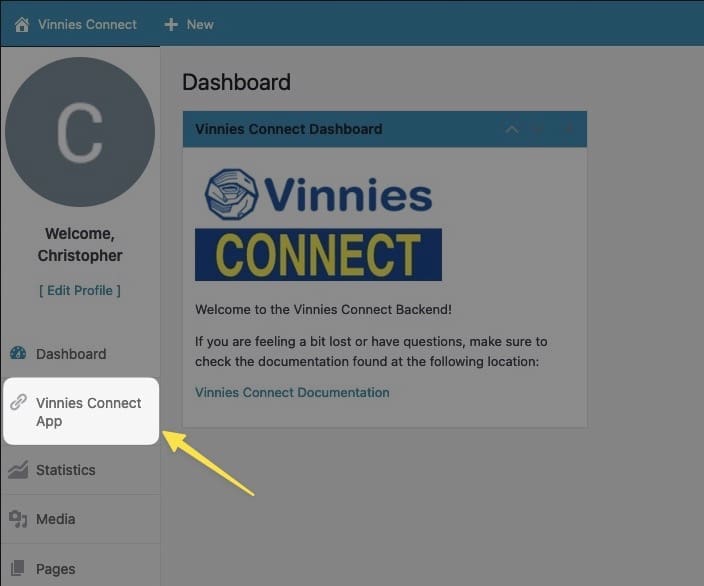
Click on the sidebar link “Vinnies Connect App”:
Please note that the application will open in a new window/tab. This means you can safely close the app to return to the dashboard at any point.
You will be redirected to the Vinnies Connect App, which is the application that Mentors, Mentees, and Sponsors interact with when they log in:
VC Admin Guide Changelog
2026-03-26
Documentation system installed
Included the sections:
Introduction
Managing Participants
Sending Available Email to Participants
Configuring Communication Emails
Changelog
Configuring Communication Emails
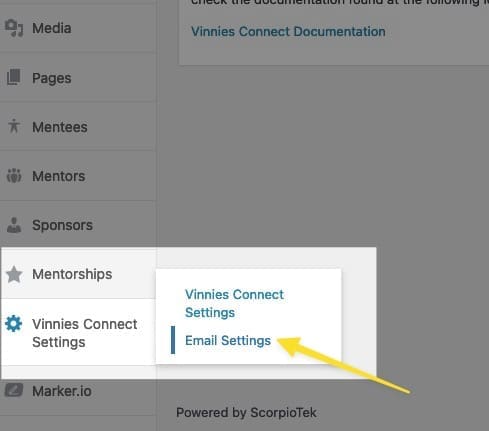
From the backend menu, select Vinnies Connect Settings → Email Settings
You will be presented with the Email Settings Pane:
At the time of this writing, email settings are separated into 4 areas:
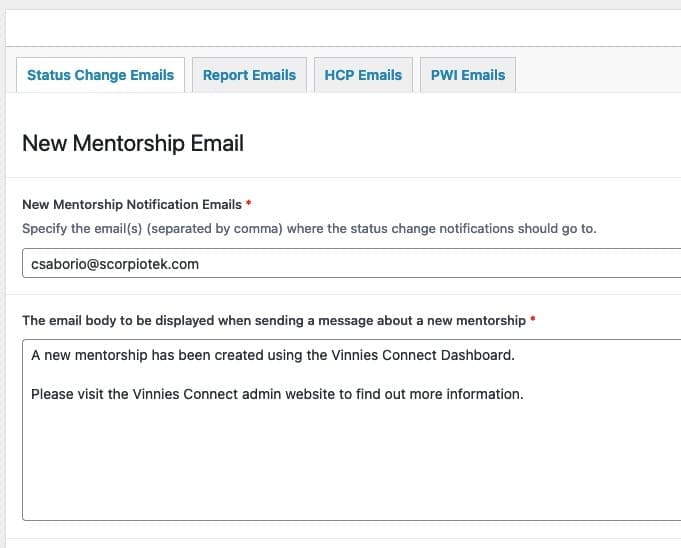
Status Change E-mails
Report E-mails
HCP E-mails
PWI E-mails
Each tab/area allows you to configure the email properties (such as subject, carbon copy recipients, and body message) for different events.
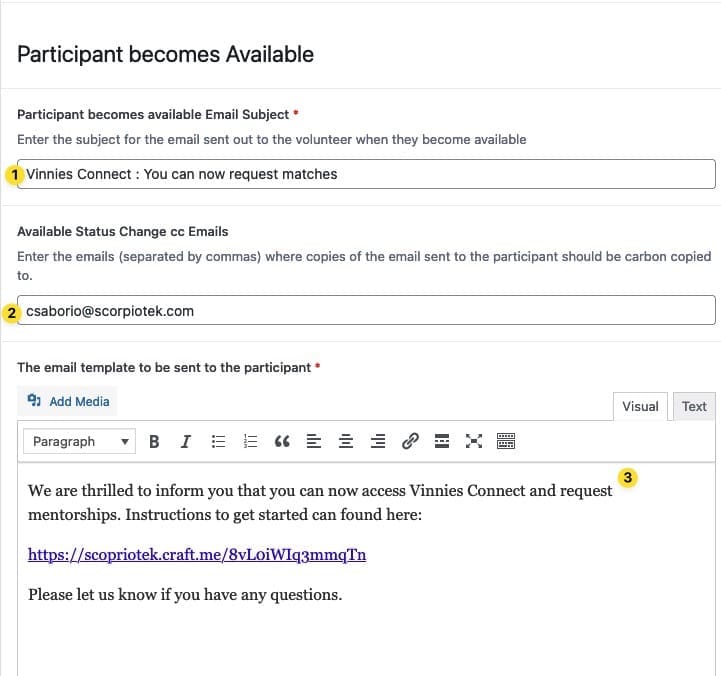
For example, if you select the Status Change Emails tab and scroll down to the section that reads: “Participant becomes Available”, you can modify the email properties that are sent when a coordinator sends a message to a participant:
In the image above, you can see the properties that can be modified:
The email subject.
Email recipients that will be receive a copy of the email (you can specify more than one by separating the addresses with commas).
The actual body message.
Sending Available Email to Participants
Once a mentor or mentee reaches Available status, a Vinnies Connect Participant can send them a welcome email to introduce them to the system.
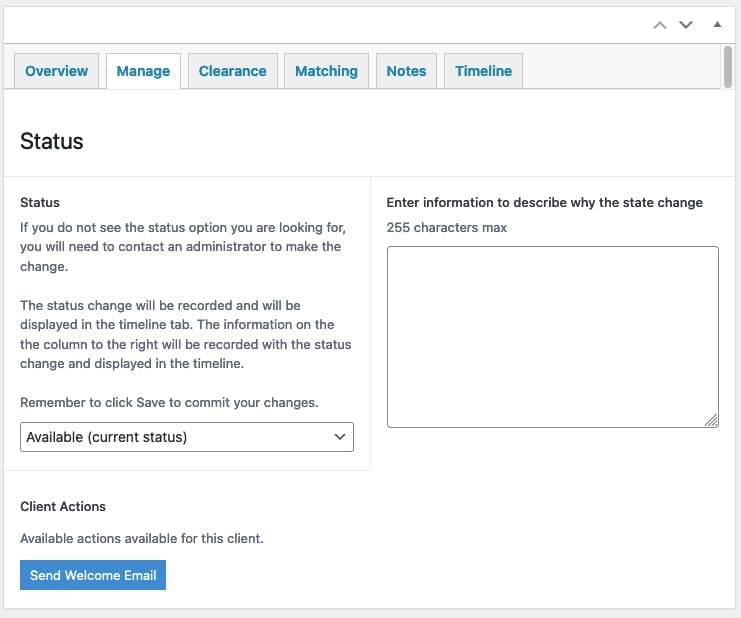
To begin, navigate to the participant’s Manage section:
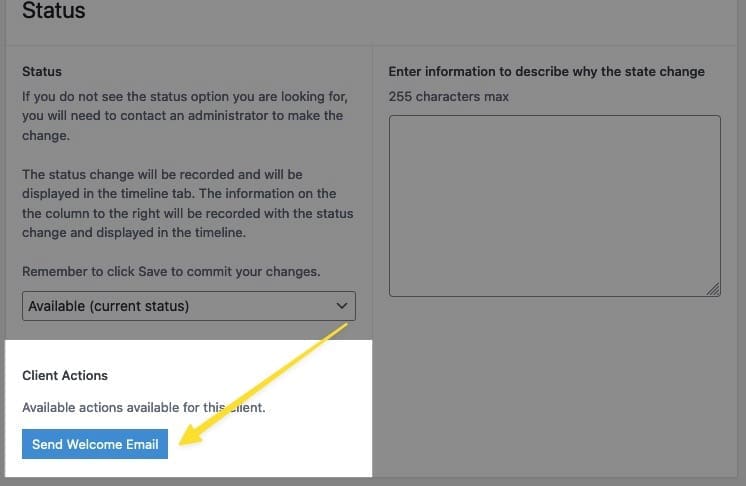
If the participant has a status of Available, you will see a button that reads Send Welcome Email:
Click the button to initiate the process, you will be asked to confirm.
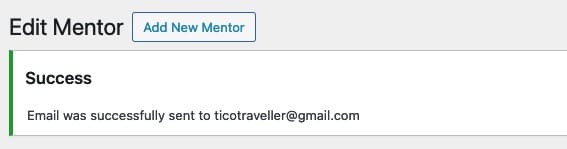
Once the email is sent, a message displayed at the top will confirm the action took place:
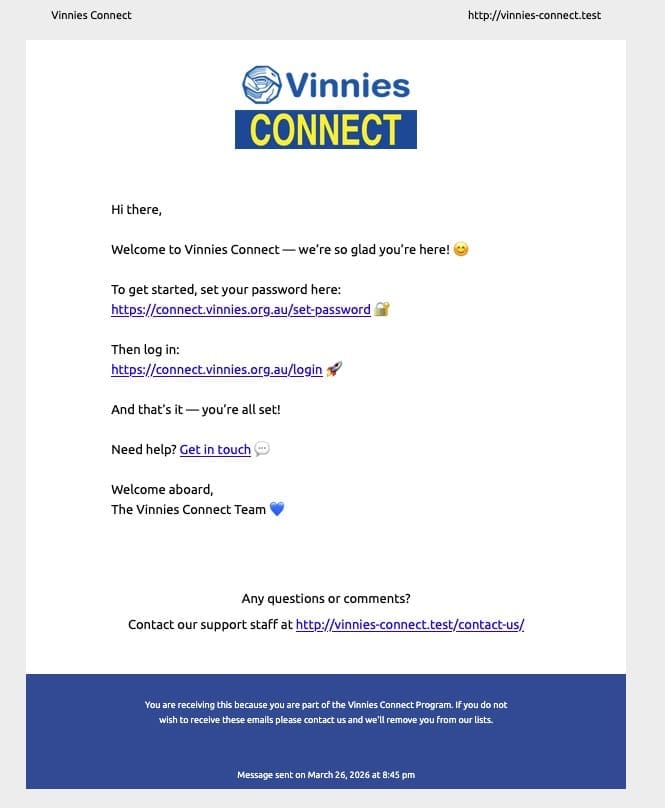
The participant will receive an email that contains the information to access the system:
To change the text that is sent in this email, head over to the Email Settings section of the backend located at the following URL:
Welcome to the Vinnies Connect Admin Guide. This guide is designed specifically for users with the Vinnies Connect Coordinator role, and will support you in managing and maintaining the system with confidence. Inside, you’ll find step-by-step guidance across a range of key tasks to help you keep Vinnies Connect running smoothly and effectively.